Install and run ancoreShare Server
System requirements and deployment planning
Use one of the following supported operating systems:
| System | Supported version |
|---|---|
| Windows client | Windows 10 or later |
| Windows Server | Windows Server 2016 or later |
You can install ancoreShare Server on a computer that also runs a Qlik Sense node. For production use, ancoreSoft recommends a dedicated computer for ancoreShare Server.
If you plan to run ancoreShare Server as a Windows service, identify the Windows account that will run the service before you begin. That account needs full control of the ancoreShare Server application directory.
Install and start a test instance
Windows can mark files downloaded from the internet as potentially unsafe. Before you extract the ancoreShare Server ZIP file, always check whether it is blocked. If you extract a blocked ZIP file, Windows can mark every contained file as unsafe and block certain Windows API functions. This can cause unexpected ancoreShare Server behavior.
- Download the ancoreShare Server ZIP file from ancoreSoft.
- In File Explorer, right-click the ZIP file and select Properties.
- On the General tab, under Security, select Unblock if the option is shown. Select Apply, then OK.
- Extract the ZIP file to the computer where you want to run ancoreShare Server.
- In the extracted application directory, right-click npqReportServer.exe and select Run as administrator.
- Open the Admin Console at http://localhost:41000.
npqReportServer.exe retains its historical file name for compatibility. When you run it as an administrator, it starts ancoreShare Server directly for testing and initial setup. For production use, run ancoreShare Server as a Windows service.
Open the Admin Console
Sign in locally
Open http://localhost:41000 in a web browser. Use the default credentials:
- Username: admin
- Password: admin
It is strongly recommended that you change the default password immediately after your first sign-in. The admin username is fixed and cannot be renamed or deleted.
If port 41000 is already in use, change the port in npqReportServer.exe.config.
Allow access from other computers
To access the Admin Console from another computer, allow inbound network traffic to the ports used by your installation. By default, ancoreShare Server uses port 41000 for HTTP and port 41001 for HTTPS. You can change these ports in npqReportServer.exe.config. Use the server name and configured port, for example http://your-server:41000.
*(Although we re-branded the product name to ancoreShare, we chose to stay downwards compatible in respect of our long-time users, hence the installation will continue to run on "npqReportServer".)
License ancoreShare Server
To use the full functionality of ancoreShare Server, request a license key from ancoreSoft.
- In the Admin Console, select Administration > Settings.
- Copy the Serial Number and provide it when requesting a license.
- When you receive the license, copy its Key value.
- In Administration > Settings, paste the key in the License field and select Save.
The page displays the license status and expiry date after you save the key.
Prepare a production service
For production use, run ancoreShare Server as a Windows service. This lets Windows manage the process independently of an interactive user session.
Configure the service account
Before you install the service, create or select the Windows account that will run it. The account needs the permissions described below.
Full-control permission
Grant the service account Full control for the ancoreShare Server application directory and all of its subdirectories.
HTTP and HTTPS rights
By running ancoreShare Server, the Windows user is starting a web service. Therefore you need to enable this user to execute HTTP and HTTPS services:
- Open the cmd (Command Prompt) as administrator.
- Type whoami and press the Enter key to get your fully qualified username.
- Enter the following netsh command and replace your fully qualified username:
netsh http add urlacl url=http://*:41000/ user=yourfullyqualifiedusername
- Repeat the command for HTTPS:
netsh http add urlacl url=https://*:41001/ user=yourfullyqualifiedusername
NOTE: The default ports are 41000 for HTTP and 41001 for HTTPS. You can change the ports in the npqReportServer.exe.config file.
Optionally, you can right-click the npqReportServer.exe file and select the Run as administrator, as the administrator usually has all the needed permissions and access rights. However, if you want to run ancoreShare as a service you might need to provide those permissions to another Windows user.
See the next segment on how to set up the service.
Install and start the service
Before you install the service, grant the service account the Log on as a service user right:
- Sign in with administrator privileges to the computer from which you want to provide Log on as Service permission to accounts.
- Go to Administrative Tools, and click Local Security Policy.
- Expand Local Policy, and select the User Rights Assignment option.
- In the right pane, right-click Log on as a service and select the Properties option.
- On the Properties dialog box, add the user and save.
Install the ancoreShare Server service:
- Run npqReportService.exe as an administrator.
- Enter the username as
DOMAIN\\usernameor.\\username. - Enter the password and select OK.
Important - QlikView only:
If you want to use QlikView as a source for your reports, the user must have a QlikView license installed. To verify, perform the following steps.
- Find the QlikView executable file, typically located at C:\Program Files\QlikView\Qv.exe
- Right-click on the file while holding down Shift + Ctrl, and select the Run as Different User option.
- Insert the credentials of the Windows user dedicated to the ancoreShare Server service and check that QlikView Desktop is activated.
*(Although we re-branded the product name to ancoreShare, we chose to stay downwards compatible in respect of our long-time users, hence the installation will continue to run on "npqReportServer".)
Adding SSL Certificate
To use HTTPS, add the SSL certificate using the following steps.
- Open the cmd (Command Prompt) as administrator
- List your SSL certificates using the command:
netsh http show sslcert
- Get certhash and appid from the chosen SSL
- Add the certificate to port 41001 (or your custom port if you changed the defaults in "npqReportServer.exe.config"), using the command:
netsh http add sslcert ipport=0.0.0.0:41001 certhash=xxxxx appid={xxxxx}
- Alternatively, use PowerShell. Refer to Microsoft documentation - Add-NetIPHttpsCertBinding for details.
Domain user and Active Directory login
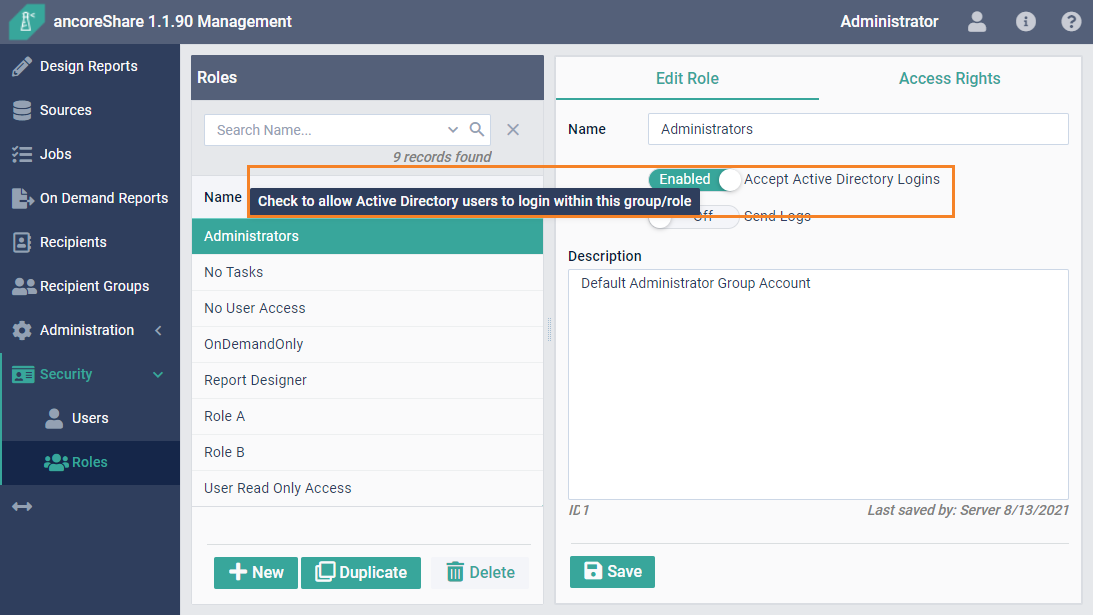
ancoreShare Server offers the unique feature to enable direct Active Directory Login for users, without importing or syncing the LDAP database. If you want to make use of this functionality, you need to use a Domain User as the Windows user that runs ancoreShare Server.
System requirements
ancoreShare Server runs only on Windows. There are no special requirements for it.
- Server
- Visual C++ 2015 Runtime
- .NET Framework 4.6.1 or higher
- QlikView Desktop installed and licensed (only required when using QlikView Apps as a source, not necessary when only working with Qlik Sense)
- Client: Any ES6 compatible web browser. Click here to check compatibility.
- Domain user and Active Directory login
Next Steps
- Start Designing your reports